
How to calibrate a measurement microphone to read dB SPL
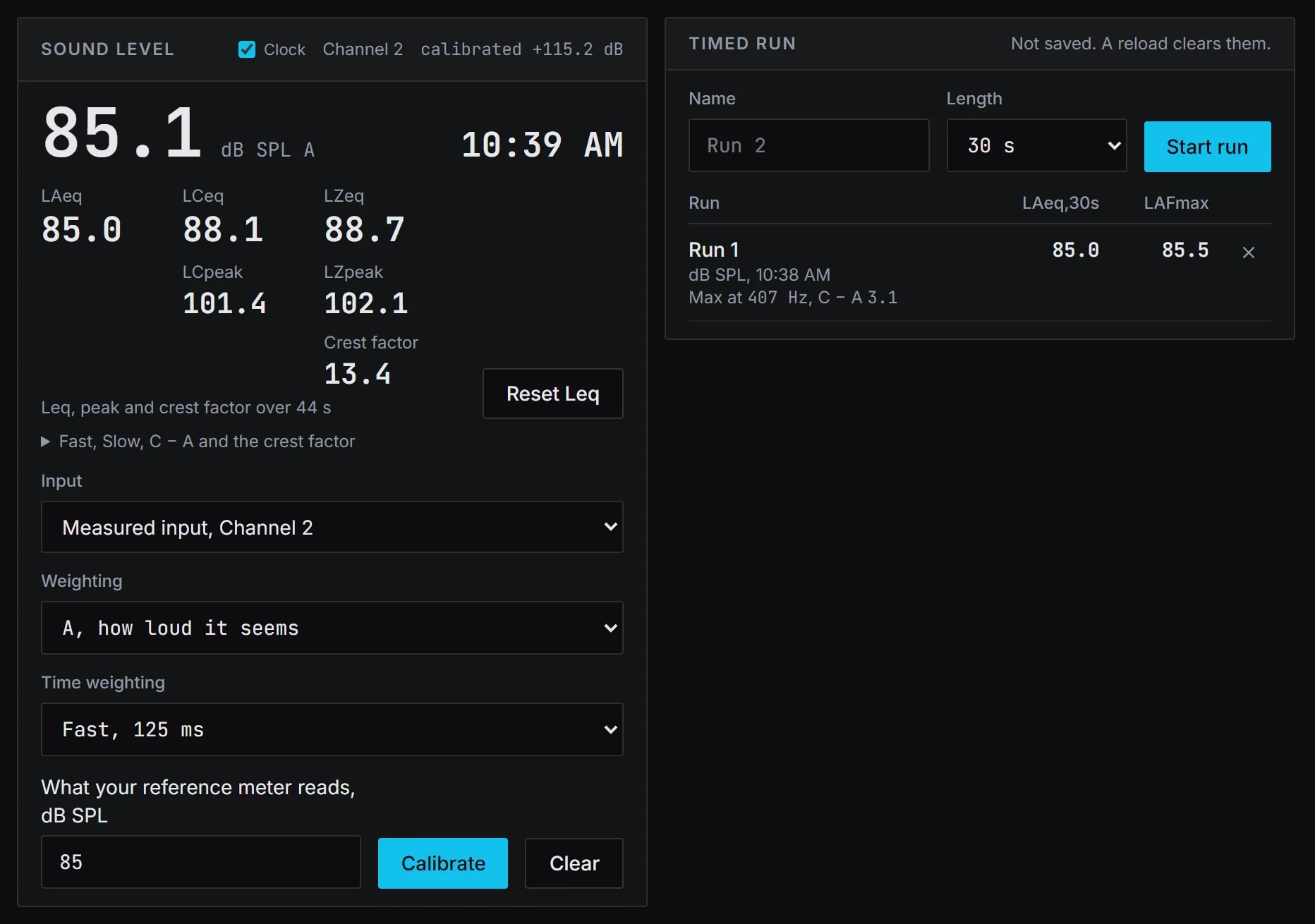
Put a sound level calibrator on the microphone, type the level it plays into Align's SPL card and press Calibrate. From then on that input reads dB SPL, until the interface's gain changes.
What you need
Free- Chrome or Edge on a computer
- An audio interface and a measurement microphone
- A sound level calibrator, Class 1 or Class 2, or a reference sound level meter
- No account: the SPL meter is free
Worked example: A calibrator at 94 dB, 1 kHz, is one pascal. Uncalibrated, the card reads a bare dB on an arbitrary zero. Type 94, press Calibrate, and the header reads "calibrated" with the offset it set. With Time weighting on Slow the level reads 94.0 dB SPL, and every reading after it carries the same offset.
Step by step
- 1
Connect, then check the browser's processing
Press Connect in the control bar. Align asks the browser for echo cancellation, noise suppression and automatic gain off. When it worked, the status bar shows no Processing warning and the setup check's Browser processing reads Off. "ACTIVE" means the browser left one on, which changes the signal: turn it off in the browser's or the system's microphone settings, then connect again. "unconfirmed" means the browser did not report it: compare one reading with a known one before you trust a level.
- 2
Set the gain
Open SPL and set the interface's input gain where you will measure, before you calibrate: the offset holds only for that gain.
- 3
Fit the calibrator
Fit the calibrator to the microphone with the adapter ring for its diameter, pushed on snugly so no sound leaks round it, and switch it on. With two or more inputs open, choose that microphone's input under Input.
- 4
Type its level and press Calibrate
In "What your reference meter reads, dB SPL", type the level the calibrator plays, often 94 dB at 1 kHz, and press Calibrate. Align matches its Slow reading to what you typed.
- 5
Repeat for each microphone
Each input keeps its own offset, shown in I-O Config as "Cal offset, dB". Calibrate every microphone you will read in dB SPL, then choose under Input the one the meter reads.
How you know it worked
- The card's header says "calibrated" and the unit reads dB SPL, not a bare dB.
- Take the calibrator off and fit it again: the level comes back to the level you typed.
- Calibrate again whenever the interface gain, the microphone or the input changes.
When it goes wrong
- No calibrator to hand
- Use a reference sound level meter. Play steady pink noise from the generator, hold the meter beside the microphone, set it to Slow, set the card's Weighting to the meter's, and type what it reads. A calibrator is the steadier way: the meter's reading moves with where you hold it.
- "Too quiet to calibrate against."
- The card refuses a reference on near silence, which would scale every later reading wrongly. Switch the calibrator on, or play the signal, let the level settle, then press Calibrate.
- Every reading is about 20 dB out
- The calibrator was set to 114 dB and 94 was typed, or the other way round. Type the level the calibrator is set to, and press Calibrate again.
- The levels moved after I touched the interface
- The offset is the gain between the microphone and the page, so a new gain needs a new calibration. Fit the calibrator and calibrate again.
- I loaded the microphone's calibration file and it still reads dB
- A calibration file, loaded with Load microphone calibration, corrects the microphone's frequency response, not its level. Calibrate sets the level.
The tools and words it uses
- SPL meterFreeSound level in A, C and Z weighting, Fast and Slow, with three Leq at once, LCpeak, LZpeak, the crest factor and timed runs. With Pro, a show log of the moving 15 minute LAeq and a one page show report.
- RTAFreeThe spectrum of what the microphone hears, live: a line for every frequency, and bars from whole octaves down to 1/24 octave with a held peak above each.
More guides: Measure reverberation time, EQ without over-correcting, Install Align and use it offline, Tune a sound system on Free, Find the delay between speakers, Read A and C weighting, Tune a car audio system, Tune a church sound system, Time align a sub to the mains, every guide.