
How to tune a sound system for free
Align's Free plan tunes with the RTA and its spectrograph, pink noise, the SPL meter with its timed runs, and the Fill and delay planner, with no account. The transfer function, the delay finder, EQ fitting and saved traces are Pro.
What you need
Free- Chrome or Edge on a computer
- An audio interface and a measurement microphone
- A sound level calibrator or a reference sound level meter, for dB SPL
- The heights and distances of your mains and of any fill or delay speaker, in metres
- A mixer or processor whose delay you can set for the fill
- No account: every step here is on Free
Worked example: Mains 4 m up, a delay speaker 15 m out and 3 m up, covering 16 to 30 m, lined up at 16 m, ears 1.7 m up, air at 20 C and 50 percent: the planner reads "Delay the fill 42.22 ms", sound at 344.0 m/s. Lined up at the front of its area, the fill is heard first at every spot behind 16 m, by up to 1.48 ms at 30 m. Mains first everywhere sets 43.70 ms.
Step by step
- 1
Connect, then check the browser's processing
Press Connect in the control bar. Align asks the browser for echo cancellation, noise suppression and automatic gain off. When it worked, the status bar shows no Processing warning and the setup check's Browser processing reads Off. "ACTIVE" means the browser left one on, which changes the signal: turn it off in the browser's or the system's microphone settings, then connect again. "unconfirmed" means the browser did not report it: compare one reading with a known one before you trust a level.
- 2
Open the RTA page and keep it for the venue
Open the RTA page from Start free. While online, press Keep offline above the meter and switch on Keep the free tools on this device, so the RTA and the SPL meter open and measure at a venue with no internet.
- 3
Calibrate the SPL meter first
Set the interface's input gain where you will measure, open SPL, fit the calibrator, type its level in "What your reference meter reads, dB SPL" and press Calibrate. Leave the gain alone from here on, as the calibration belongs to it.
- 4
Play pink noise into the system
Start with the system turned down. In the Signal generator at the Control bar's foot, choose Pink, the one signal Free plays, and under Plays to choose the output that feeds your mixer, then bring the system up until the noise is well clear of the room.
- 5
Read one speaker at a time on the RTA
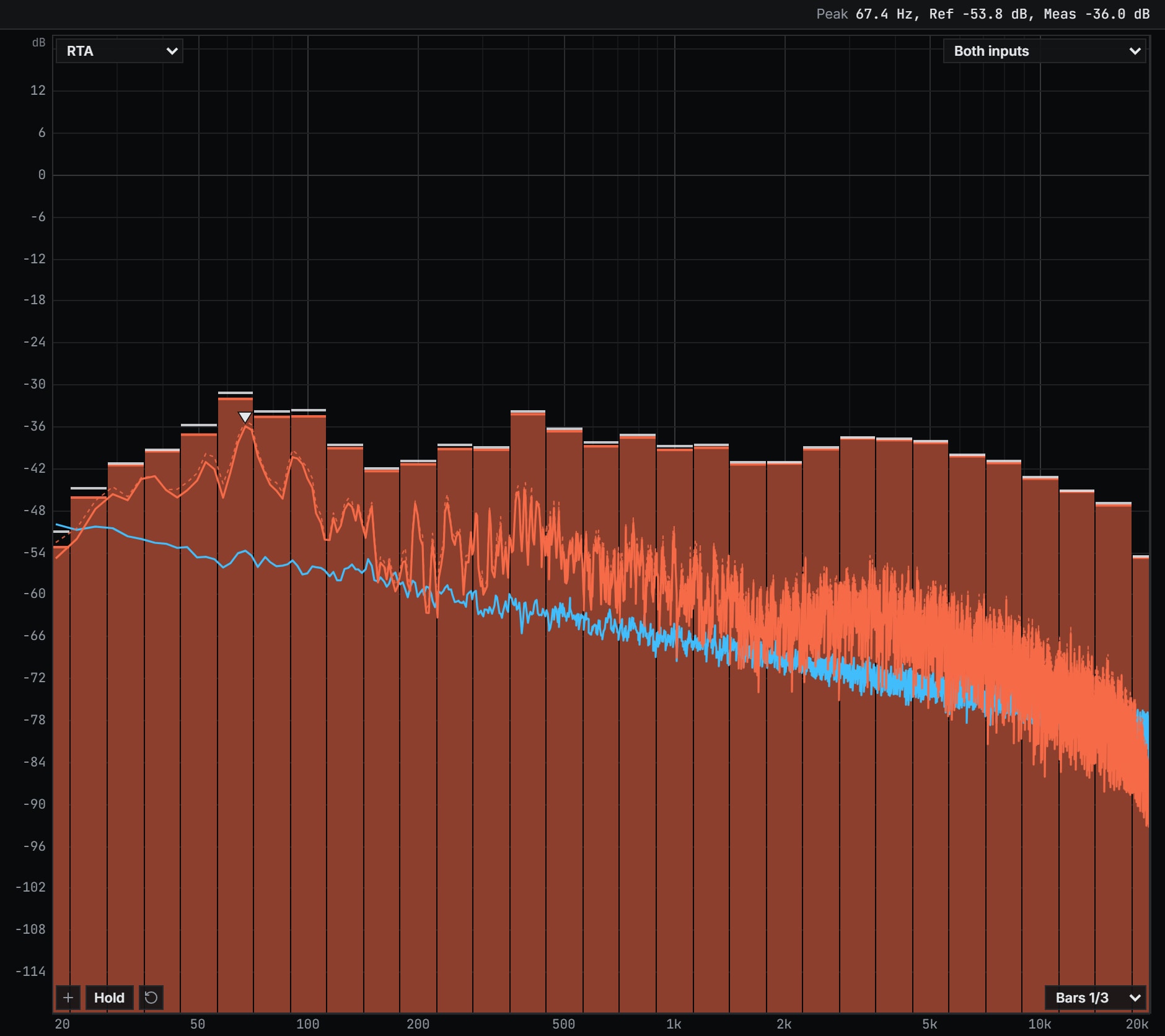
Mute every speaker but one at the mixer and put the microphone where the audience listens. Choose Bars 1/3 in the graph's bottom right corner and press Peak hold, or P. Set Graph settings, Spectrum and RTA, Bar type so each bar is its band's power summed, where pink noise reads flat, and compare one band against another. Then do the next speaker at the same spot.
- 6
Watch the spectrograph for ringing
In the View menu, show the RTA and spectrograph, the spectrum over time, frequency across and the newest slice at the top. Ringing and feedback show there as a bright vertical line, one frequency held over time, often before its peak on the RTA alone is loud in the room.
- 7
Work out the delay speaker with the Fill and delay planner
Open Tools, then Fill and delay planner. Type Mains height, Fill distance, Fill height, Area starts, Area ends, Line up at and Ear height, in metres. Its heading reads the delay to set on the fill, worked from the speed of sound in the air set in Config, Preferences; enter it at the processor.
- 8
Keep the mains heard first
If the planner says The fill is heard first, it names the spots and by how much. Press its Mains first everywhere button, which raises Mains first by until no spot in the area hears the fill first, and enter the new delay.
- 9
Hold each change against the run before it
After each change at the mixer, keep a timed run on the SPL meter at the same spot and choose the run before it under Compare with, so the table says what the change did to the level and to the loudest frequency.
- 10
Know where Free stops
The transfer function and its delay finder, EQ fitted with a reason for each filter, Positions, saving traces and sessions, the show log of the moving 15 minute LAeq, the Feedback finder and every signal but pink noise are Pro. Each stays in view with a Pro mark and says what it does when pressed. Pro opens every other tool for one payment of US$199, a launch price; the Prices page lists what each plan opens.
How you know it worked
- The SPL card shows "calibrated" with the offset it set, so every level after it is in dB SPL.
- The planner shows no "The fill is heard first" line, and its table reads the fill after the mains at every spot.
- With the system at show level, the spectrograph shows no bright vertical line, and each speaker read alone at the same spot was compared band by band.
When it goes wrong
- The RTA's bars do not match the SPL meter's level
- They are not meant to: the RTA reads a relative level, a shape to read one band against another, and only the calibrated SPL meter reads dB SPL.
- The planner says the fill is no nearer than the mains
- At that line-up spot delaying the fill cannot line them up. Line up farther from the mains, or delay the mains.
- A band dips on the RTA and turning it up at the mixer does not fill it
- An RTA shows no phase or time, so it cannot tell a dip from the speaker from a cancellation by a reflection or a second speaker, and EQ cannot fix a cancellation. Move the microphone and read again: Align's own EQ will not boost a narrow dip, and finding the cause takes the transfer function, which is Pro.
- My timed runs are gone
- Timed runs are not saved: a reload clears them. Saving traces and sessions is Pro.
The tools and words it uses
- RTAFreeThe spectrum of what the microphone hears, live: a line for every frequency, and bars from whole octaves down to 1/24 octave with a held peak above each.
- SPL meterFreeSound level in A, C and Z weighting, Fast and Slow, with three Leq at once, LCpeak, LZpeak, the crest factor and timed runs. With Pro, a show log of the moving 15 minute LAeq and a one page show report.
Words: Pink noise, RTA (spectrum), dB SPL, Delay.
More guides: Find the delay between speakers, Read A and C weighting, Tune a car audio system, Tune a church sound system, Time align a sub to the mains, Calibrate the SPL meter, Measure reverberation time, EQ without over-correcting, Install Align and use it offline, every guide.