
How to EQ a sound system without over-correcting
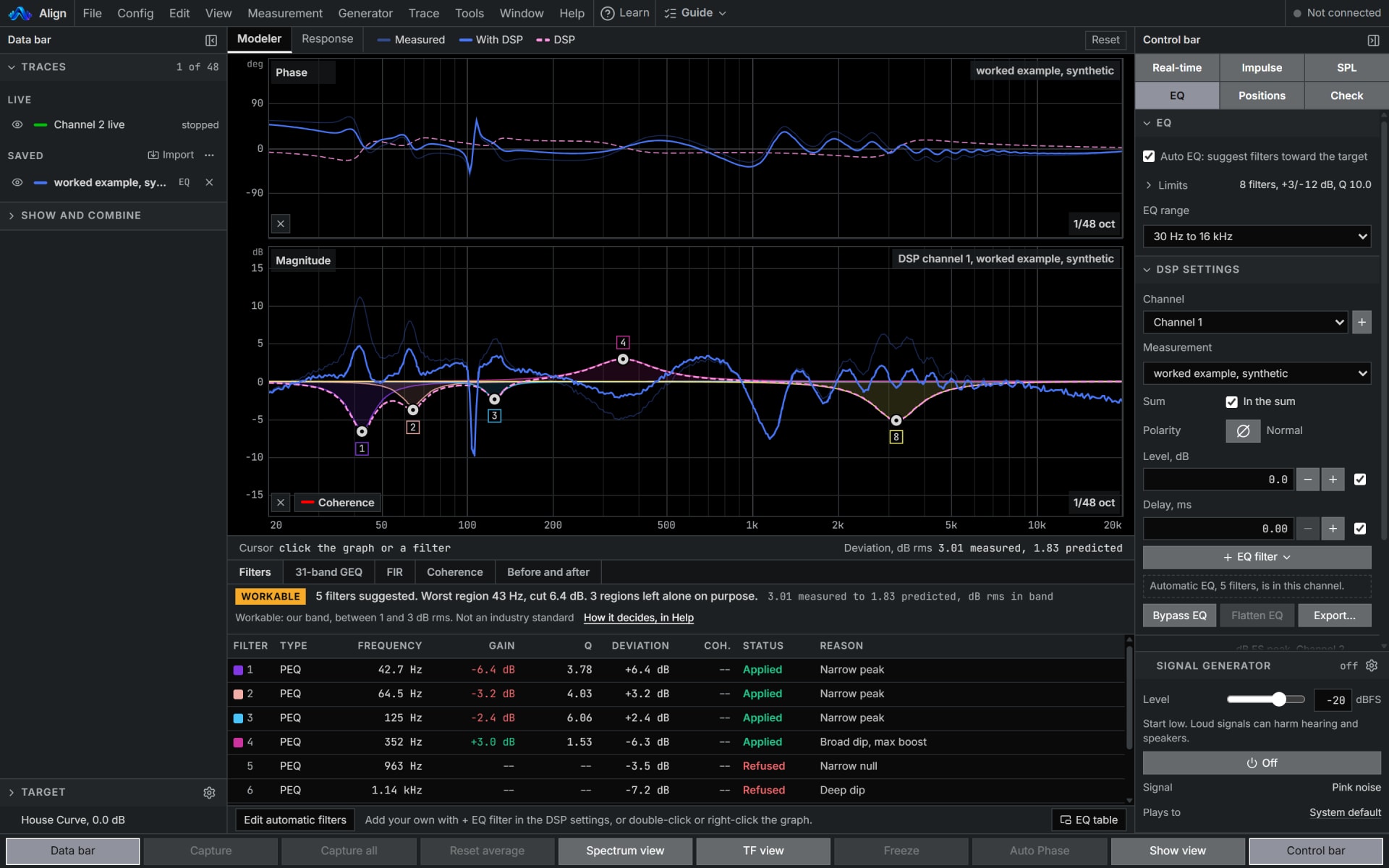
Measure several microphone positions, fit the EQ to their average, cut the peaks every position shares and leave the narrow dips that move with the microphone. Align fits under those rules and gives the reason for every filter and every region it leaves alone.
What you need
Pro- Chrome or Edge on a computer
- An audio interface and a measurement microphone
- A processor to take the filters
- Pro
Worked example: Where the positions differ by 3 dB, as a standard deviation, the fit gives that frequency half its weight, 1 / (1 + 1). Where they differ by 6 dB it gives a fifth, 1 / (1 + 4), so a dip one seat sees and the others do not barely moves the EQ.
Step by step
- 1
Connect, then check the browser's processing
Press Connect in the control bar. Align asks the browser for echo cancellation, noise suppression and automatic gain off. When it worked, the status bar shows no Processing warning and the setup check's Browser processing reads Off. "ACTIVE" means the browser left one on, which changes the signal: turn it off in the browser's or the system's microphone settings, then connect again. "unconfirmed" means the browser did not report it: compare one reading with a known one before you trust a level.
- 2
Capture the first position
Set up the transfer function with its delay found and inserted, open Positions and press Capture at the first seat.
- 3
Move and capture again
Name the next position if you like, move the microphone to another seat and press Capture as, which names the position it keeps. Two or more positions give an average, a median and their spread; more seats cover more of the room.
- 4
Read the spread
Positions says how far the seats differ from 200 Hz to 5 kHz and where they differ most. A feature every position shares is the loudspeaker or the room; one that a single position shows is where that microphone stood.
- 5
Fit to the average
Press Use the average for EQ, or Use the median, which one odd position cannot drag. EQ opens; pick the target at the foot of the Data bar: Flat; X-Curve, gentle; House Curve; Outdoor curve; or Custom.
- 6
Read every reason
Each filter says why it is there, such as Stable peak or Broad dip, and each region left alone says why, such as Narrow null, Deep dip, Below the passband or Low coherence.
- 7
Export, check one filter, measure again
Export filters writes them for your processor. Type the first, check it on the unit's own graph, then the rest, and measure again at more than one seat.
How you know it worked
- Measured again with the filters in, the seats follow the target, the ones you did not fit to as well as the ones you did.
- Every filter in the table has its reason, and no boost goes past 3 dB unless you raised the limit.
- The fit stopped on its own once no remaining error, weighted by coherence, reached 0.6 dB.
When it goes wrong
- It will not boost that dip
- A narrow dip moves when the microphone moves, so filling it fixes one seat and makes the others worse, and a deep dip has no energy to lift. A boost there spends headroom and heats the amplifier. Move the speaker or the seat, not the EQ.
- One seat sounds right and the rest got worse
- The EQ was fitted to that seat alone. Capture more positions and fit to their average or median.
- It looks right on screen and sounds hollow
- SER's Result is a prediction through the channel, not a new measurement, and cutting more than the room needs sounds hollow. Measure again with the filters in, and keep only what survives every position.
- Regions marked Low coherence get no filter
- The measurement does not support a correction there: noise or reflections. Raise the noise level, move the microphone away from a near surface and measure again, or lower the minimum.
The tools and words it uses
- EQProFilters fitted to your target by three rules, with a plain reason for every region it leaves alone.
- Filters and targetsProYour own filters beside the automatic EQ, and a target to fit toward: Flat, X-Curve gentle, House Curve, Outdoor curve or Custom.
- Transfer function and delayProThe system's magnitude, phase and coherence against what it is fed, with the delay found and inserted, live from up to 16 inputs.
Words: EQ filter, Q, Smoothing, Position, Spatial average, The three rules.
More guides: Install Align and use it offline, Tune a sound system on Free, Find the delay between speakers, Read A and C weighting, Tune a car audio system, Tune a church sound system, Time align a sub to the mains, Calibrate the SPL meter, Measure reverberation time, every guide.