
How to tune a car audio system with an app
Stand the microphones at the driver's headrest, time every speaker to the farthest from tape-measured distances, then fit the left side to the car target and match the right side to it within 2 dB. Align's Vehicle tuning, in Tools, takes you through those steps in order on Pro; the RTA is free.
What you need
Pro- Chrome or Edge on a computer
- An audio interface and measurement microphones: a middle one and two or more around it, up to six
- A tape measure, in centimetres
- A car processor whose delay, polarity, crossover and EQ you can set for each speaker
- Pro
Worked example: At the driver's headrest the tape reads 85 cm to the left tweeter, 120 cm to the right tweeter, 75 cm to the left mid-bass, 115 cm to the right mid-bass and 180 cm to the sub. Sound covers 343 m a second at 20 °C, so the sub, farthest, adds nothing, and the others add 2.77 ms, 1.75 ms, 3.06 ms and 1.90 ms: at 48 kHz, 133, 84, 147 and 91 samples. The left mid-bass, nearest, waits longest, the time sound takes over the 105 cm it is nearer by. A sub's time from the tape is a starting point: finish it on the phase at the crossover.
Step by step
- 1
Connect, then check the browser's processing
Press Connect in the control bar. Align asks the browser for echo cancellation, noise suppression and automatic gain off. When it worked, the status bar shows no Processing warning and the setup check's Browser processing reads Off. "ACTIVE" means the browser left one on, which changes the signal: turn it off in the browser's or the system's microphone settings, then connect again. "unconfirmed" means the browser did not report it: compare one reading with a known one before you trust a level.
- 2
Look first with the free RTA
Put the microphone at the driver's headrest and play Pink from the generator. Choose bars from Bars 1 oct down to Bars 1/24. The RTA reads a relative level, so compare one band against another: it shows where the car is heavy or thin before you change anything.
- 3
Draw the car and set the mics
With Pro, choose Tools, then Vehicle tuning. Under Car, add every speaker your car has, up to 32, each with what it is, where it sits and its sides, and set the driver's seat: it opens on a start, not on your car. Under Mics, pick the middle mic, which times each speaker, and the mics around it, whose power average is each speaker's response. Chrome opens two inputs per device, so seven mics need Inputs 3-4, 5-6 and 7-8 picked in I-O Config, Input; keep them on one interface, as two interfaces are two clocks that drift apart. Six microphones spaced evenly round the places a listener's ears can be, averaged, give a response that repeats from one run to the next.
- 4
Polarity, one speaker at a time
Pick a speaker on the car map. Mute every other speaker at the processor and play the noise. Press Find once it has heard this speaker alone, then Insert all, Reset average, and capture once the average settles. A speaker that reads inverted keeps the Polarity step open: flip its polarity at the processor, then measure it again. Check polarity first, with a measurement, never by ear.
- 5
Set the gains
Set each amplifier's gain on the amplifier itself before any EQ, then tick Gains: Align cannot see a gain, so this step is yours to tick. A driver fed a clipped signal can be damaged.
- 6
Time every speaker from the tape
In Timing, set Seat to tune to Driver and Timed from to Tape-measured distances. Measure from the centre of each speaker to the mic at the headrest, in centimetres, and type each one. The table gives each speaker its Delay in ms, the Path of air it stands for in cm, and its Samples. The farthest speaker adds nothing; every nearer one waits for it. Add each delay at the processor, in ms. Both front seats gives each speaker the halfway point of its two seats' delays, which holds for neither seat exactly.
- 7
Set the crossovers
Set each crossover at the processor, a high pass on the small drivers and a low pass into the sub, then tick Crossovers. Start at 24 dB per octave Linkwitz-Riley, with the sub's low pass about half an octave under the mid-bass high pass.
- 8
Fit the left side to the car target
In the left step, set Bass lift below 60 Hz, 10 dB unless you change it, up to 15, and press Use the car target: the bass lifted below about 60 Hz, flat through the mids, falling to -6 dB at 20 kHz. Mute the right side, press Capture as Left under Left, right and both, and fit it in EQ. Bring each channel near the target by its level first, then EQ, mostly cuts: take away what is too much rather than add what is missing. Tick the step once it sits on the target.
- 9
Match the right side to the left
Mute the left side and press Capture as Right. Align says how many dB Right and Left differ where both play, and the step is done once they are within 2 dB. Match the right side to the left you just tuned, not to the target on its own.
- 10
Check both sides together, then listen
Play both sides and press Capture as Both. The step is done once Both dips nowhere that neither side does, read from 40 Hz to 1 kHz. This is a check, not a step to EQ. Then play music you know from the seat, and tick Listening check once it sounds right.
How you know it worked
- Every step of the run reads done, and the car map ticks each speaker once it is timed, its level matched and it is sent to EQ.
- Right and Left read within 2 dB where both play, and Both dips nowhere that neither side does.
- Each speaker's arrival on the middle mic reads strong, not usable or weak, before you capture it.
When it goes wrong
- Both dips where neither side does
- Timing or polarity is off there, so do not EQ it. Press Back to timing and check each delay went in at the processor as ms: a delay typed into a distance box is the most common cause of a centre that sounds smeared. Then check the polarity of the two speakers that play there.
- Only one microphone
- The run still passes on one. Vehicle tuning's power average needs two or more mics besides the middle one, so the Polarity step reads no speaker on one: check each at the processor and tick the step, as its line asks. Capture as Left, Right and Both keep the one microphone's reading, so the right side's match and the check of both read as with seven.
- The centre leans to one side
- Turn that whole side down a little at the processor. Move the image with level, never with delay: the delays line every speaker up at the head, and changing one breaks that.
- I want to tune the car from my phone
- Tune it from a computer in the car. Align, the free RTA too, measures live in Chrome or Edge on a computer, where an audio interface's inputs reach the app.
The tools and words it uses
- RTAFreeThe spectrum of what the microphone hears, live: a line for every frequency, and bars from whole octaves down to 1/24 octave with a held peak above each.
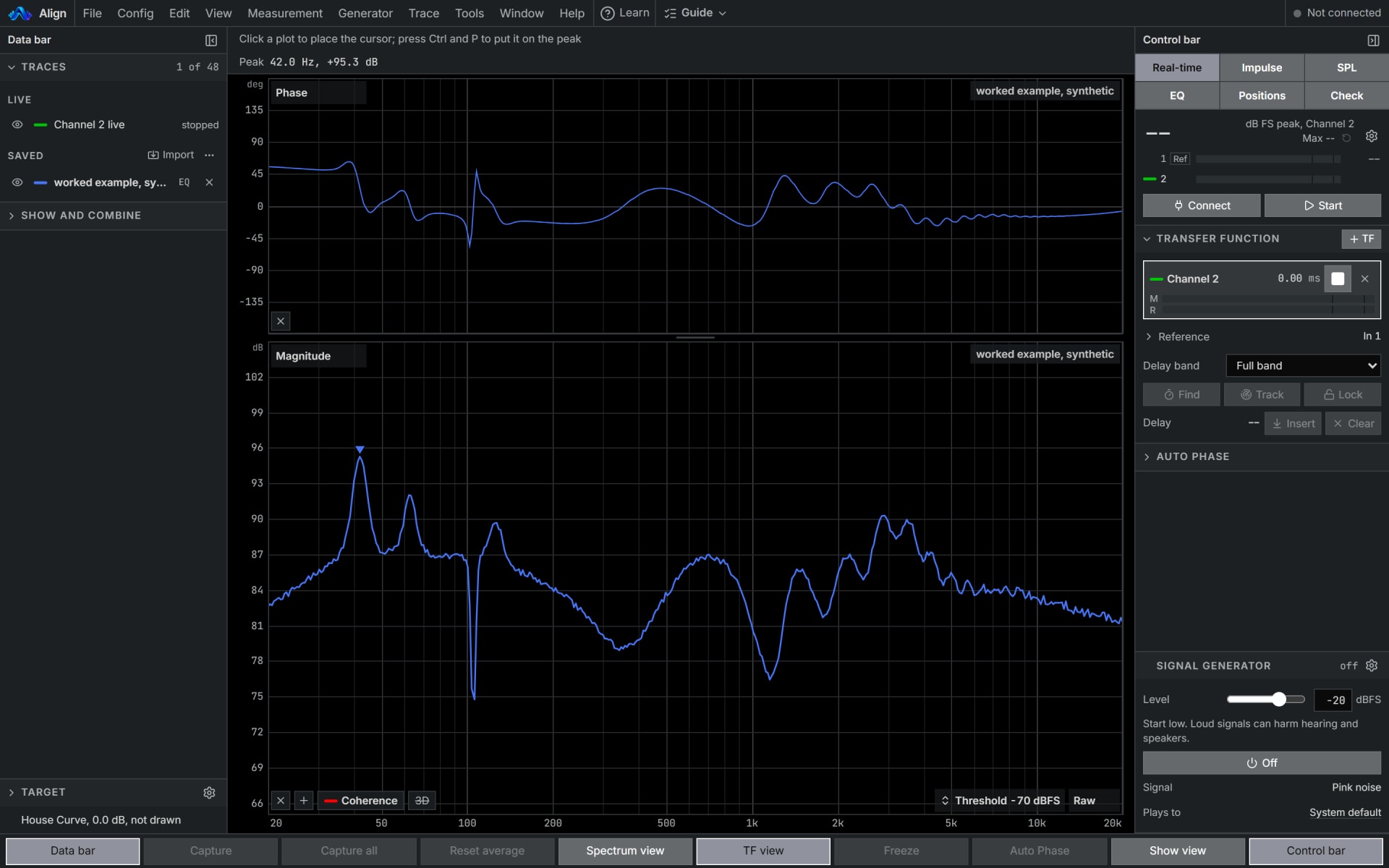
- Transfer function and delayProThe system's magnitude, phase and coherence against what it is fed, with the delay found and inserted, live from up to 16 inputs.
- EQProFilters fitted to your target by three rules, with a plain reason for every region it leaves alone.
Words: RTA (spectrum), Delay, Target, Spatial average, Pink noise.
More guides: Tune a church sound system, Time align a sub to the mains, Calibrate the SPL meter, Measure reverberation time, EQ without over-correcting, Install Align and use it offline, Tune a sound system on Free, Find the delay between speakers, Read A and C weighting, every guide.